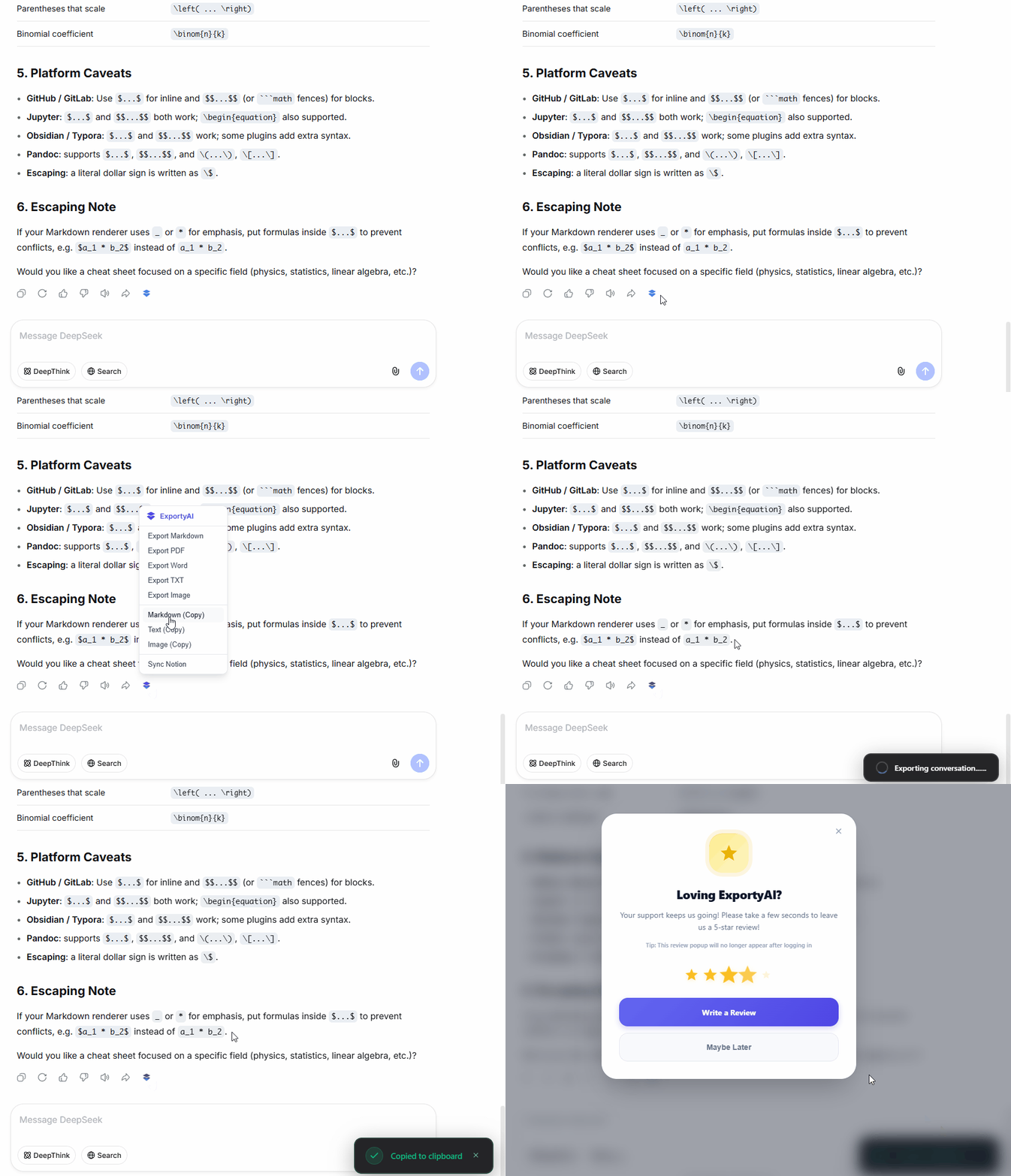
Sometimes you don't need a separate file at all—you just want to paste an AI conversation quickly into Obsidian, Feishu Docs, or WeChat. ExportyAI offers three "no export panel needed" copy entries: one-click copy in the extension popup, a right-click quick menu on the page, and a single-message button injected next to each reply—ready for the clipboard instantly.
One-click copy in the popup
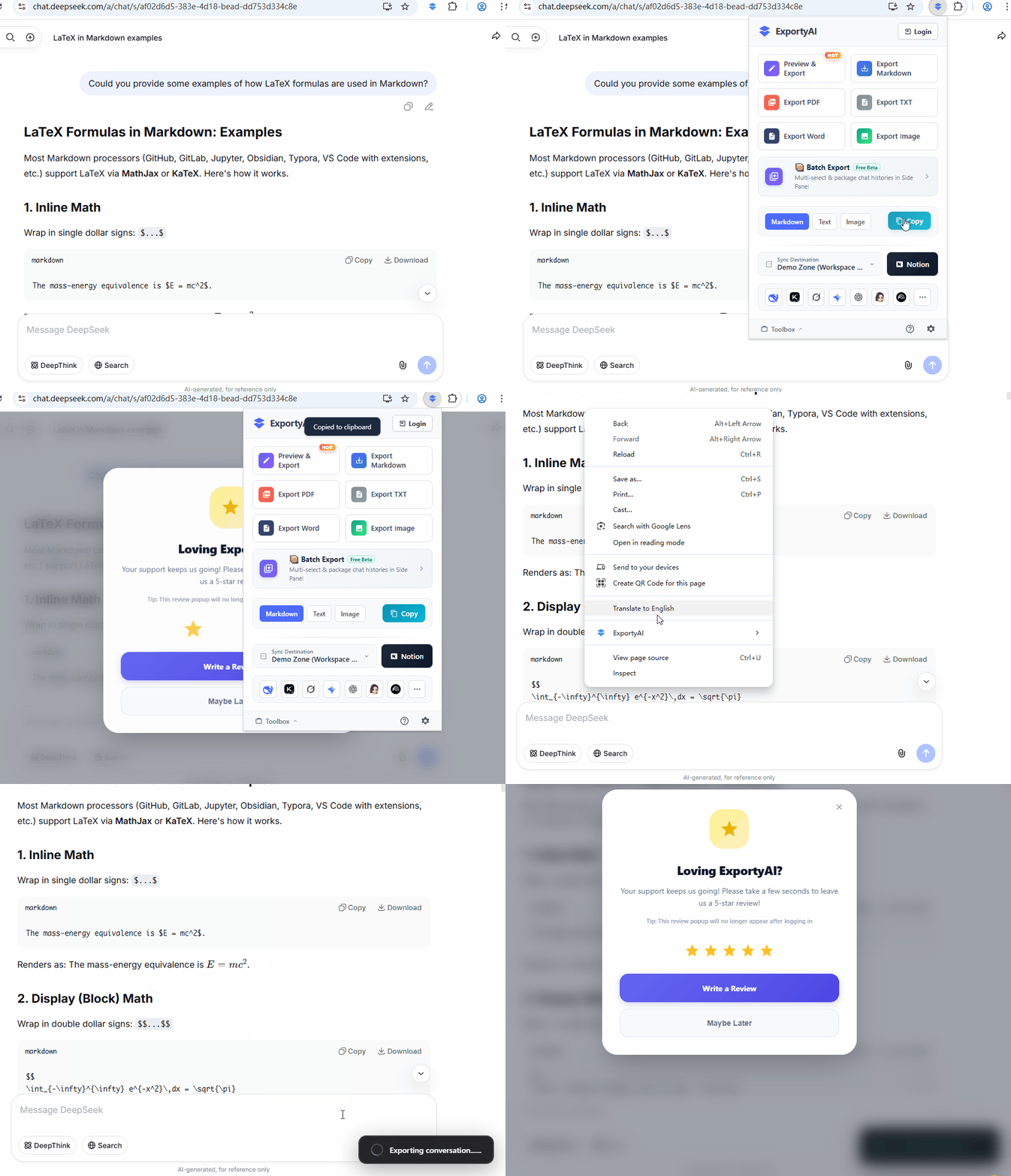
- Click the ExportyAI icon in the browser toolbar to open the extension popup.
- Choose a format in the "Copy" section at the bottom: Markdown, Text, or Image (your choice is remembered, so next time you can click directly).
- Click the [Copy] button and the current conversation is copied to the clipboard instantly—paste it into any note app.
Right-click quick menu on the page
On a supported AI chat page, right-click anywhere to bring up the ExportyAI quick menu—no popup needed: ExportyAI → Copy as Markdown / Text / Image. The menu also offers direct export in five formats, plus entries for preview export and Notion sync.
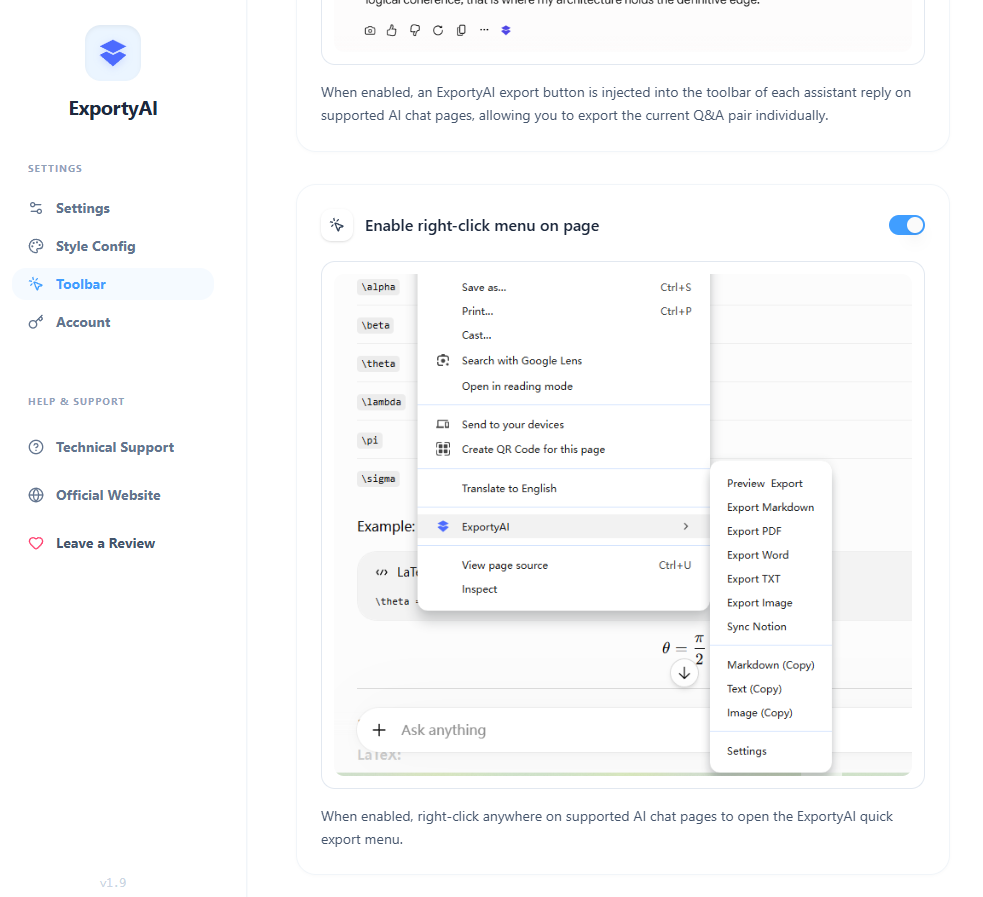
First turn on the switch in the options page: Options page → Toolbar → Enable right-click menu on page. It is enabled by default; when off, the ExportyAI menu no longer appears on right-click in browser pages.
The switch lives in the "Toolbar" settings card on the options page:
The animation below demonstrates the first two whole-conversation copy methods (popup copy → right-click menu copy) in action:
Single-message button copy
If you only want to copy one brilliant reply, no window needs to open: hover over the AI answer and click the ExportyAI button injected into the native toolbar, then choose [Copy as Markdown / Text / Image] from the menu—the Q&A pair goes straight to your clipboard. Button injection can also be toggled in the "Toolbar" settings on the options page.