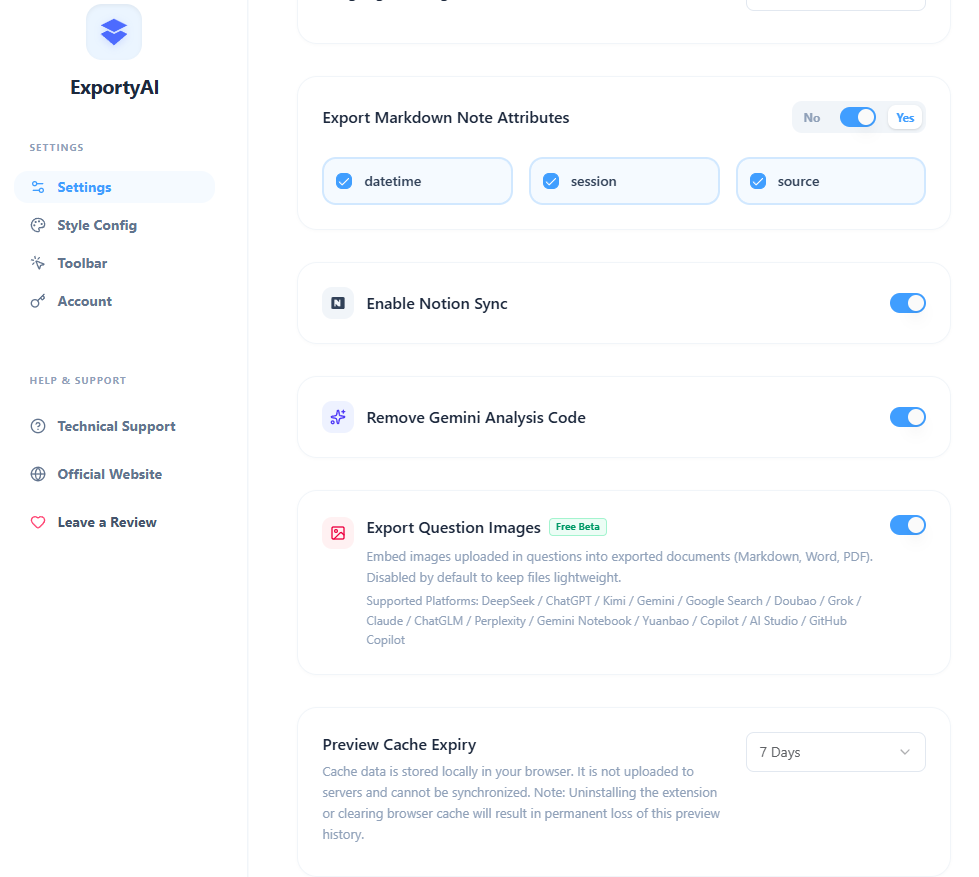
Under the "Settings" category on the options page, there are three easily overlooked but very useful options. This chapter explains what each does and how we recommend configuring it.
Export Markdown note properties
When enabled, a block of note properties is automatically appended to the head of exported files (a YAML Frontmatter code block in Markdown), with three freely toggleable sub-items:
- Generated time: the date and time of this export.
- Conversation topic: the title of the current conversation.
- Source link: the web address of the conversation, handy for tracing back later.
When pasted into Obsidian, Logseq, and other note apps, these are recognized as note properties automatically—no manual organizing of archive metadata needed. The TXT format lists them as a plain-text header, while PDF / Word show a property bar at the top of the body. All three are enabled by default; if you don't need properties, use the master switch to turn them off in one click.
Remove Gemini analysis code blocks
When you ask Gemini to do data analysis or generate charts, Gemini runs Python code in the background. That execution code and its output (collectively the "analysis code block") is embedded in the raw data of the reply (collapsed and hidden by default on the page).
Because ExportyAI reads Gemini's raw conversation data directly, this intermediate process data comes along too, leaving your exported file with large code blocks unrelated to the conclusions. This option is enabled by default—it automatically strips the analysis code blocks and their outputs on export, keeping only the final conclusions. If you do need a full record of the execution process, you can turn it off manually.
Preview data cache retention time
The "Preview Export" feature caches the extracted conversation data in your local browser, so the next time you open the preview window, historical conversations load quickly without re-scraping.
Here you can set when the cache is cleaned up automatically: 7 days by default, and you can shorten it; setting it to 0 means never clean up automatically. Please note: the cache lives only in your local browser—it is never uploaded to any server and does not sync across devices; uninstalling the extension or clearing the browser cache permanently deletes the preview history data.