When you've accumulated dozens or hundreds of historical conversations on an AI platform and want a full backup, a knowledge-base migration, or a tidy archive, opening and exporting them one by one takes forever. ExportyAI's sidebar batch export was made for this: it lists the entire history of the current platform in the browser's native sidebar—search, check multiple conversations, and export them as one package without ever visiting each page.
1. Open the sidebar batch export
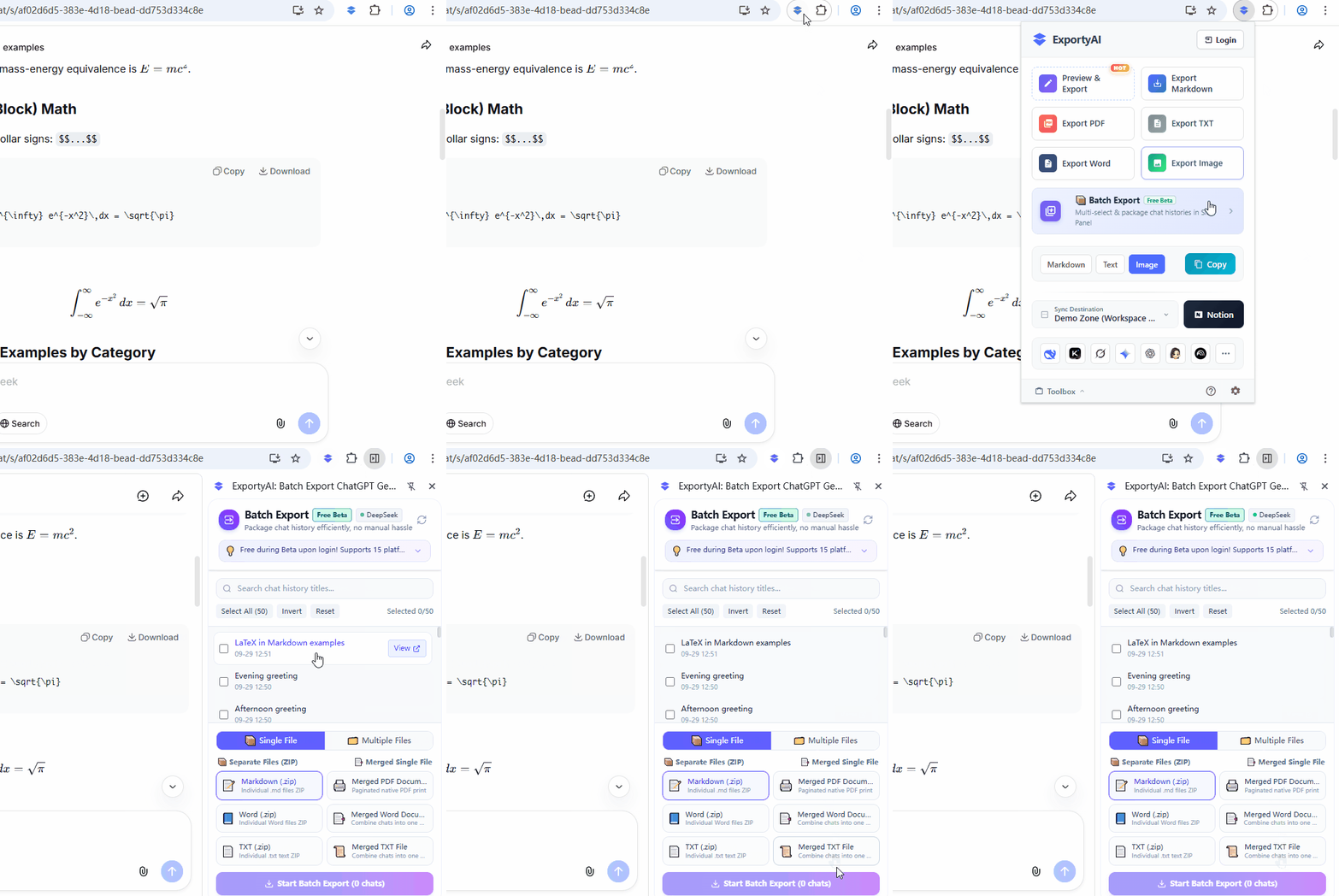
On an AI page of any supported platform, click the pinned ExportyAI icon in the toolbar to pop open the panel, then click the [Batch Export] entry card to summon the sidebar, which automatically locks onto the current platform. You can also right-click the extension icon and choose "Open in sidebar" to enter directly.
2. Search and select conversations
Once the sidebar opens, it automatically detects the AI platform you're on and lists that account's conversation history (with titles and dates). Here's what the list can do:
The search box at the top filters by conversation title keywords in real time—even hundreds of records are located in an instant.
Supports Select All / Invert / Clear / Reset, with a live "selected x / total" counter at the top so selection status is crystal clear.
The list loads in batches by default; click "Load More / Load All" to pull the complete history at once.
Pin 📌 important conversations; every record supports "View" and "Open in new tab" so you can confirm the content before exporting.
3. Two export modes
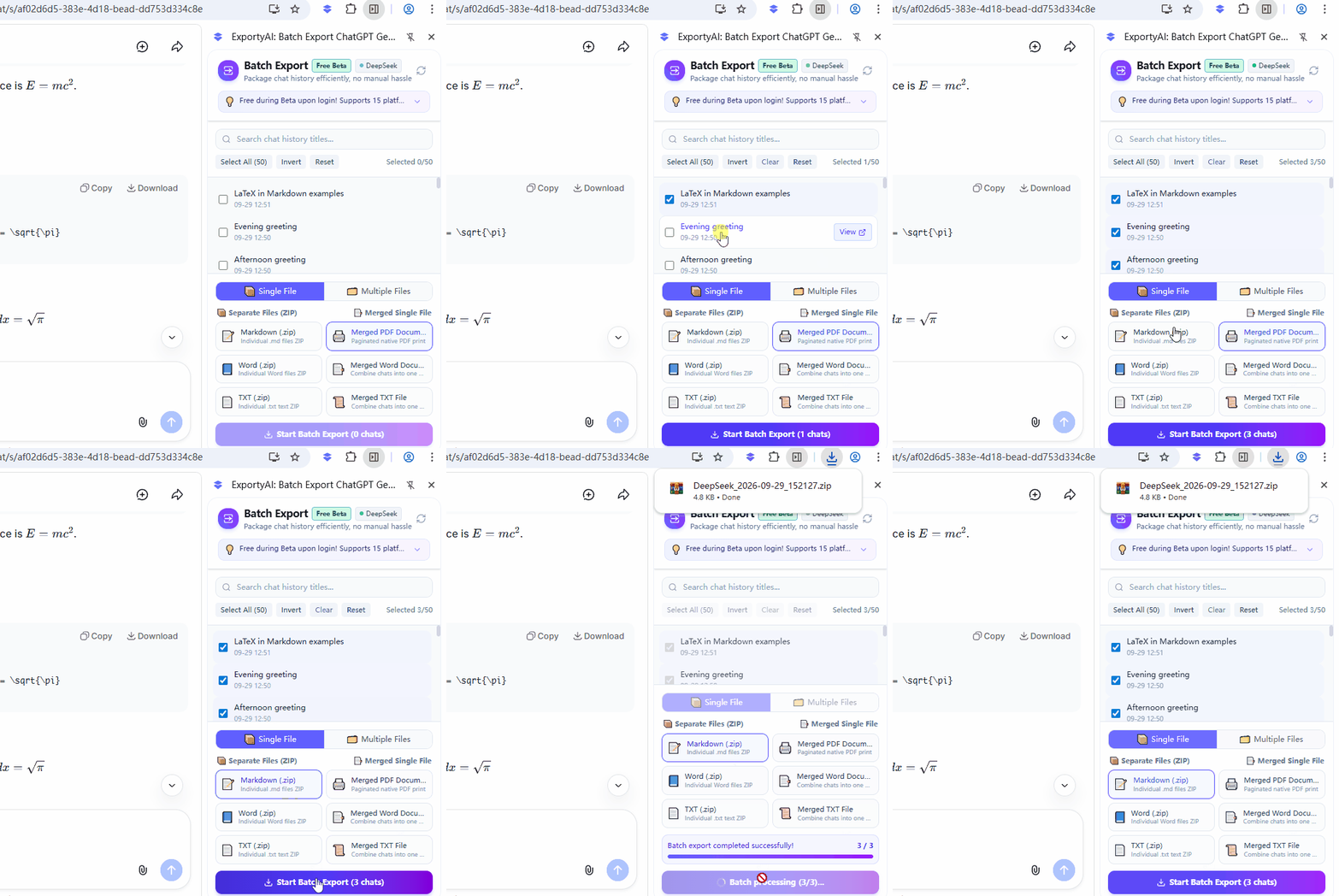
After checking your target conversations, the export area at the bottom offers a switch between [Single-File Export] and [Multi-File Export] (it defaults to "Single-File Export"). Pick a mode first, then choose the specific format:
Each conversation is exported as a separate file and packaged into one ZIP archive (Markdown / Word / TXT)—perfect for reading piece by piece or archiving by category. You can also choose [Merge multiple conversations into one] to stitch several conversations chronologically into a single complete document (merged PDF / Word / TXT). Files go through the browser's download flow, so it works in all browsers (including Firefox).
Each conversation becomes an independent file written directly in bulk into a local folder you specify—with no save dialog popping up at all, so dozens or hundreds can be exported consecutively. Ideal for large-scale archiving. Supports Markdown / Word / TXT. Only Chromium-based browsers such as Chrome / Edge are supported; Firefox is not supported yet (see the note below).
4. Multi-file export: choose a folder and authorize
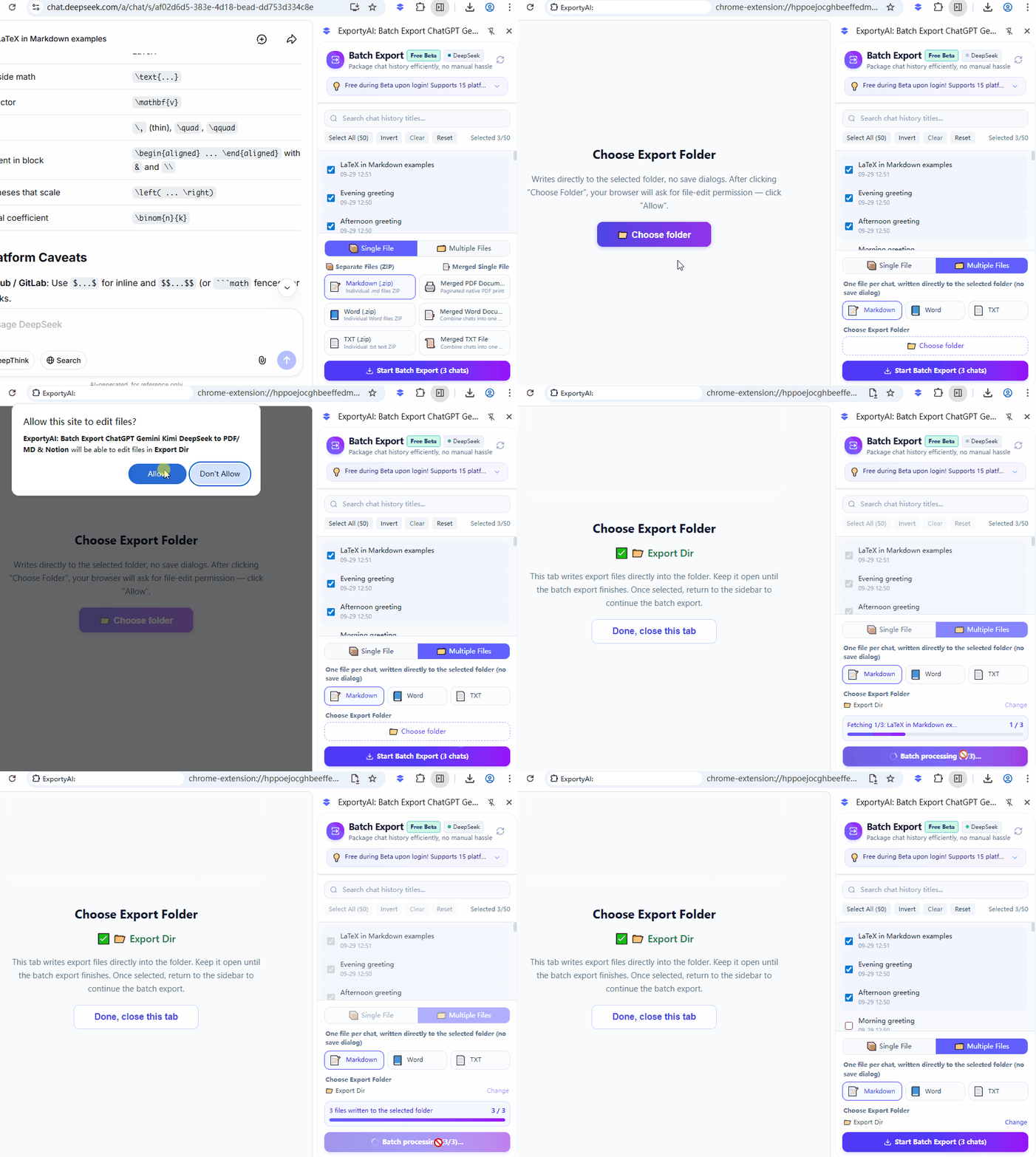
After switching to "Multi-File Export" mode, you need to designate a local folder as the write target. Authorization is required only once:
- Click the [📁 Choose Folder] button in the export area—the browser will open an authorization tab automatically.
- In the authorization tab, click [Choose Folder] and select the target directory. When the browser shows the "Allow this site to edit files?" prompt, click [Allow], otherwise files cannot be written.
- Once authorized, the tab shows the selected folder name. Please keep that tab open until the batch export finishes, then return to the sidebar and click [Start Batch Export].
5. Start exporting and things to note
After choosing the mode and format, click the [Start Batch Export (N conversations)] button at the bottom. ExportyAI will automatically open each selected conversation page one by one and extract its content, showing live progress in the panel (current x / N total). When "Single-File Export" completes, everything is packaged and downloaded automatically; "Multi-File Export" writes to the chosen folder in real time and reports how many files were written when done.
Batch export currently supports DeepSeek, Kimi, ChatGPT, Gemini, Grok, Google Search, Doubao, ChatGLM, Claude, Perplexity, Yuanbao, Copilot, GitHub Copilot, Gemini Notebook, and AI Studio—15 platforms in total, with more being added continuously. During the public beta, signed-in users enjoy unlimited free use, while unsigned users get 10 uses per day. After the beta ends, this feature will become a Pro privilege.