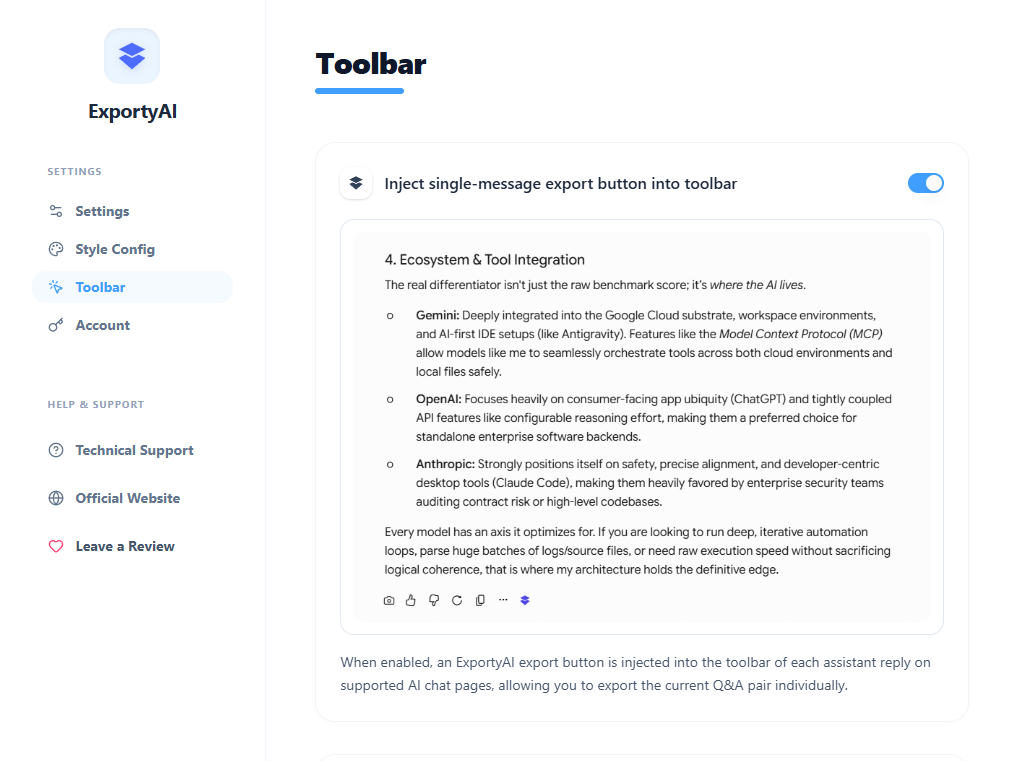
Besides exporting the whole conversation from the extension panel, ExportyAI also automatically injects an export button next to the native action bar of every AI reply in the web conversation stream—no popup needed; see a reply worth saving and click it.
Features and usage
Enter the conversation page of any supported platform and an export button appears next to the action bar of every reply—no manual setup required.
Copy that Q&A pair as Markdown or export it as a file in one click—handy for temporarily saving a single brilliant reply.
Enabled by default. If you don't want the button on pages, turn it off in the extension settings with one click—other features are unaffected.
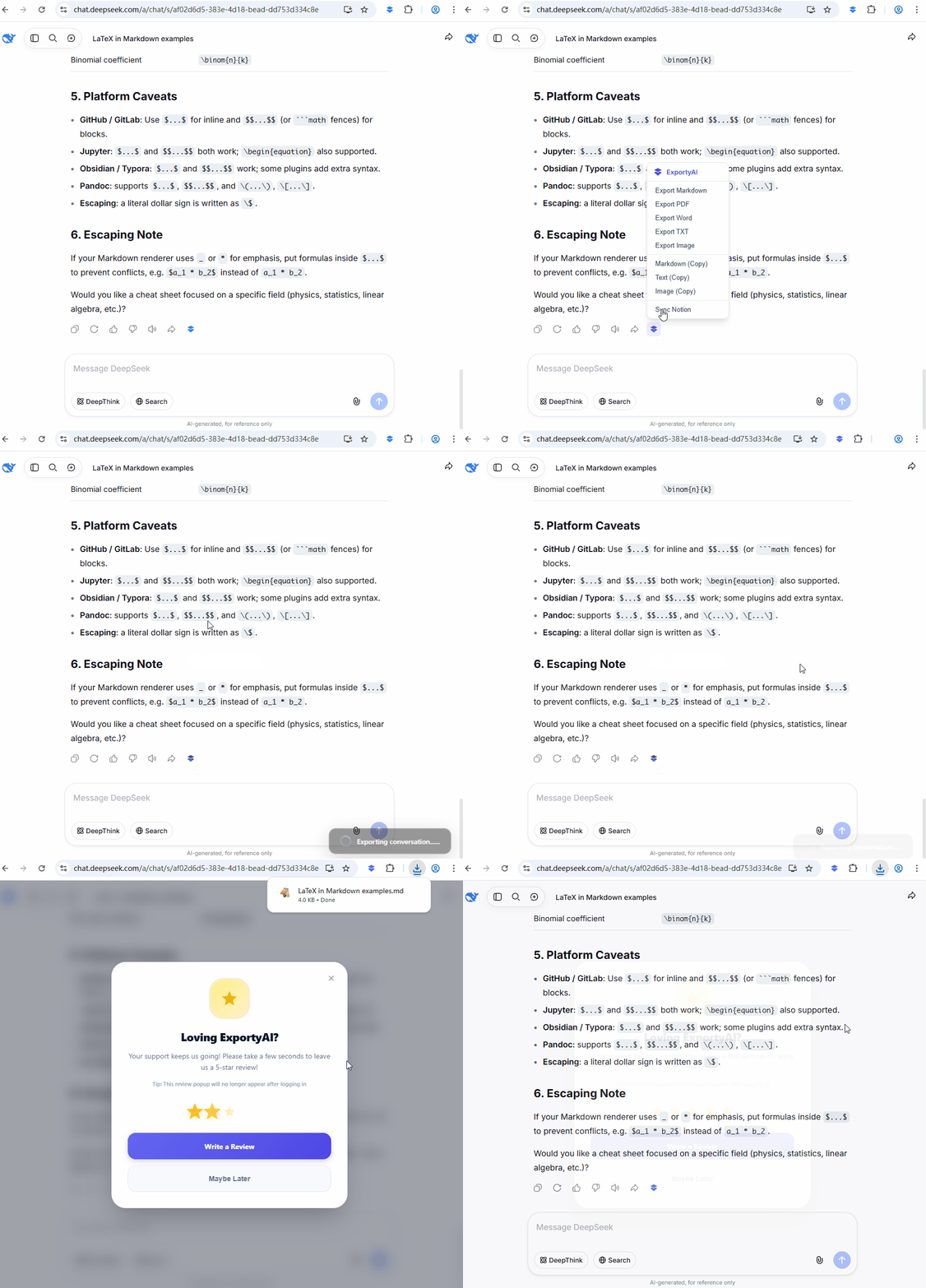
Options page switch
Button injection is enabled by default. If you don't want this button on pages, turn it off in the options page: Options page → Toolbar → Single-message export button injection. Turning it off doesn't affect other export methods like the popup or right-click menu.